Example Map
The drone ships with a ready-to-run sample level so you can see the whole stack — patrol, chase, search, 3D pathfinding — without wiring anything up. This is the fastest way to get a feel for the system before you drop it into your own level.
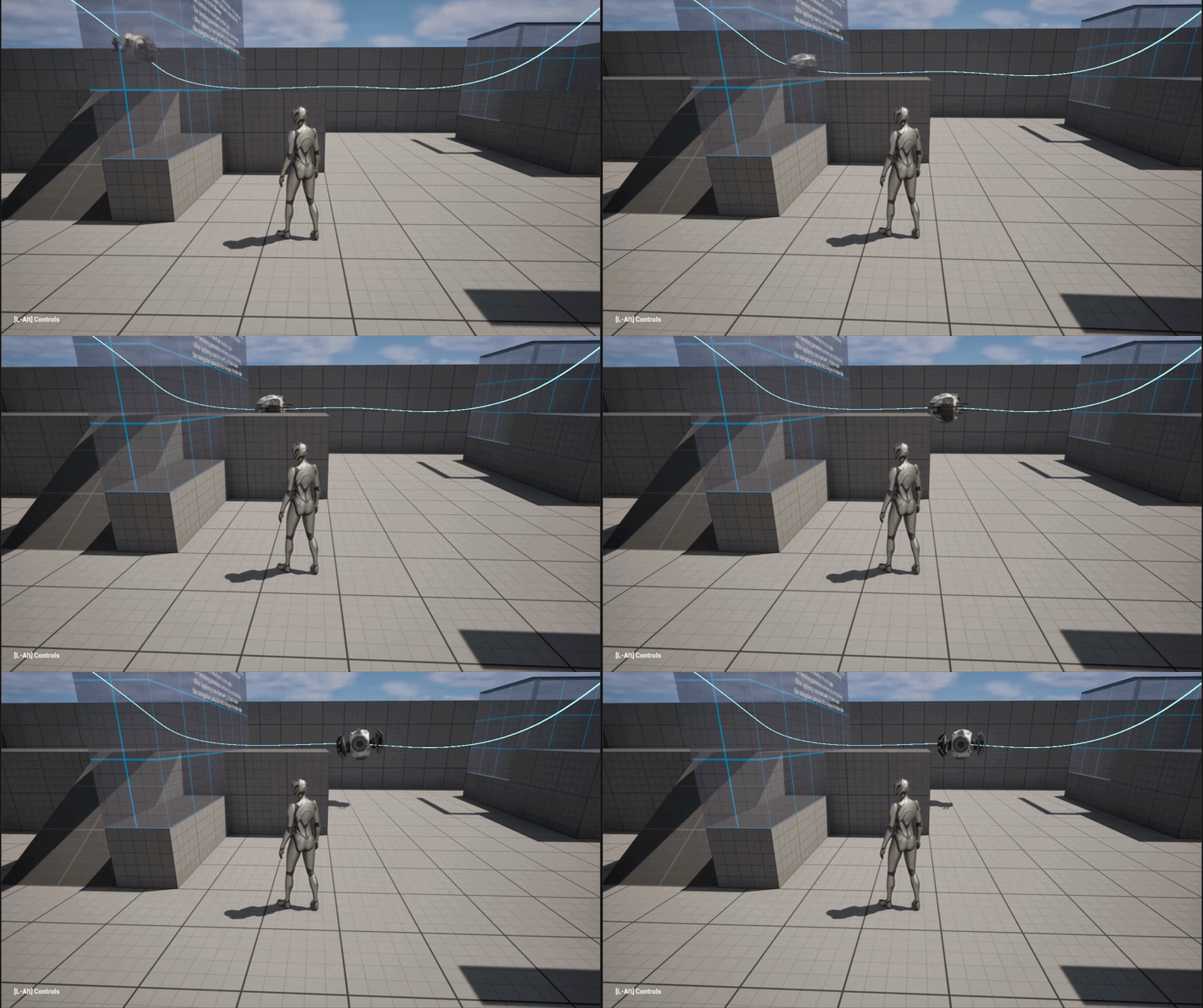
Open and play
- In the Content Browser, go to AIDroneNavigation → Maps.
- Open
L_DroneNav_Demo. - Press Play.
That's it — the level already has a placed BP_DroneNavManager, nav volumes, a baked graph, patrolling drones, and the third-person player. The drone patrols its route, detects you when you come into view, chases you through the air, searches your last-known spot when it loses sight, and returns to patrol.
The in-level control panel
The sample level includes a small debug control panel so you can drive the demo while it runs.
Hold Left Alt to reveal the mouse cursor and the control panel. Release it to return to normal play. (Left Alt is used deliberately — Tab is reserved by the UI system.)
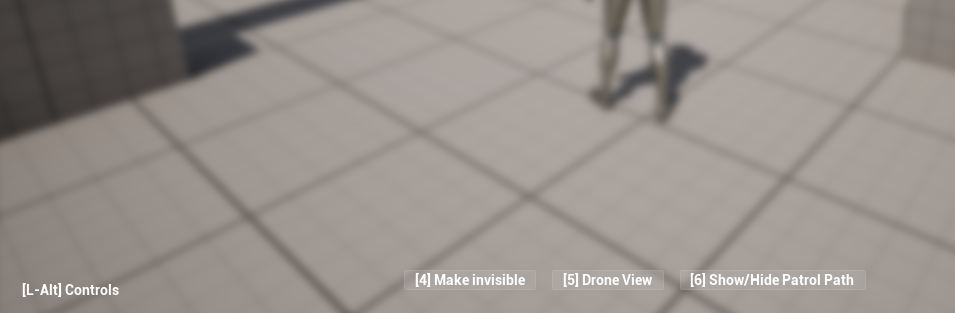
The panel buttons:
| Control | What it does |
|---|---|
| Toggle View | Switch the camera between the player and the drone's point of view, so you can watch the pathfinding from the drone's seat. |
| Toggle Targeting | Turn drone detection on or off. When you switch it off, every drone goes blind (CanSpotEnemies? → false) and the player lights up (glows) to show it's being ignored — the drones just patrol. Turn it back on to be hunted again. |
| Toggle Patrol Path | Show or hide a debug drawing of the patrol spline and its hold markers, so you can see the route the drone is following. |
The drone chases any Character that does not carry its FriendlyTag (default Team A) — so by default the player is fair game, and you mark allies as friendly by giving them the tag. There's also a global CanSpotEnemies? switch to blind every drone at once. The "Toggle Targeting" button flips CanSpotEnemies? across all drones (and forces perception to re-sense, which is why the change is instant). See How It Works.
The control panel is reusable
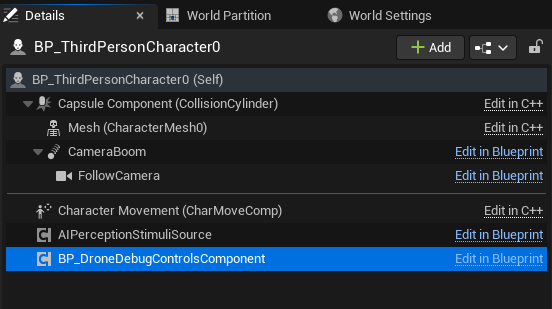
The panel isn't bespoke demo glue — it's a drop-in BP_DroneDebugControlsComponent that you can add to any pawn in your own level to get the same toggles. It talks to the widget and the pawn through interfaces (BPI_DroneDebugControls, BPI_DroneDebugAvatar), so it doesn't hard-depend on the sample character. The glow-on-ignore highlight is an optional pawn behaviour — implement BPI_DroneDebugAvatar on your pawn to get it, or skip it and the rest still works.
Where to go next
Once you've seen it run, the Quick Start walks through building the same setup in your own level from scratch, and How It Works explains the architecture behind what you just watched.